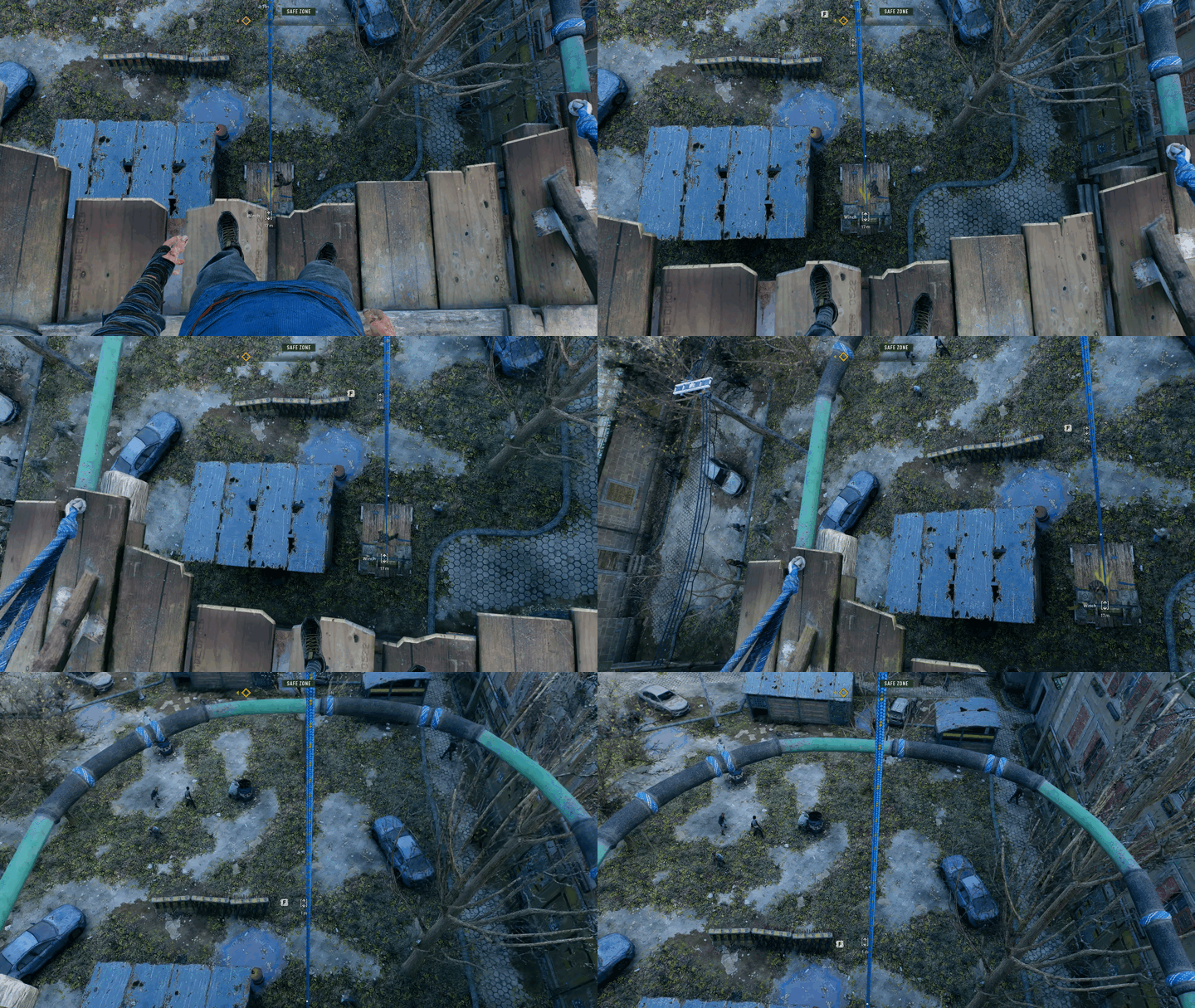
An unofficial 6DOF head tracking mod for Dying Light 2 Stay Human using OpenTrack-compatible trackers.
- Decoupled look + aim: Look around freely with your head while your aim stays independent
- 6DOF head tracking: Full rotation (yaw, pitch, roll) and positional tracking (X, Y, Z) via OpenTrack UDP protocol
- Dying Light 2 Stay Human v1.16 or later
- Ultimate ASI Loader (auto-installed by install script)
- OpenTrack or a compatible head tracking app (smartphone, webcam, or dedicated hardware)
- Download the latest release from the Releases page
- Extract the ZIP anywhere
- Double-click
install.cmd
Step 1: Install ASI Loader
- Download Ultimate-ASI-Loader_x64.zip
- Extract
winmm.dllto your game directory:<DL2 Install>/ph/work/bin/x64/winmm.dll
Step 2: Install the Mod
- Copy
DL2HeadTracking.asito:<DL2 Install>/ph/work/bin/x64/DL2HeadTracking.asi - Copy
HeadTracking.inito the same directory (optional - defaults will be created)
- Steam: Right-click Dying Light 2 > Manage > Browse local files > navigate to
ph/work/bin/x64/ - Epic Games:
C:\Program Files\Epic Games\DyingLight2\ph\work\bin\x64\ - GOG:
C:\GOG Games\Dying Light 2\ph\work\bin\x64\
- Download and install OpenTrack
- Configure your tracker (Input):
- For webcam: Select "neuralnet tracker"
- For phone app: Select "UDP over network"
- Configure output:
- Select UDP over network
- Host:
127.0.0.1 - Port:
4242
- Click Start to begin tracking
- Launch Dying Light 2
This mod includes built-in smoothing to handle network jitter, so if your tracking app already provides a filtered signal, you can send directly from your phone to the mod on port 4242 without needing OpenTrack on PC.
- Install an OpenTrack-compatible head tracking app from your phone's app store
- Configure your phone app to send to your PC's IP address on port 4242 (run
ipconfigto find it, e.g.192.168.1.100) - Set the protocol to OpenTrack/UDP
- Start tracking
With OpenTrack (optional): If you want curve mapping or visual preview, route through OpenTrack by setting its Input to "UDP over network" and Output to port 4242.
Two equivalent binding sets - use whichever your keyboard has:
| Action | Nav-cluster | Chord |
|---|---|---|
| Recenter | Home |
Ctrl+Shift+T |
| Toggle tracking | End |
Ctrl+Shift+Y |
| Cycle tracking mode | Page Up |
Ctrl+Shift+G |
| Toggle yaw mode | Page Down |
Ctrl+Shift+H |
| Toggle reticle | Insert |
Ctrl+Shift+U |
Page Up / Ctrl+Shift+G cycles tracking mode:
- Normal head-tracked gameplay
- Positional tracking disabled, rotational tracking enabled
- Rotational tracking disabled, positional tracking enabled
- Back to normal
- Camera-local (default): yaw rotates around your head's up axis. When you pitch the view down and yaw, the horizon tilts and the view sweeps a cone. Matches traditional head-tracked FPS feel.
- World-locked: yaw rotates around the world's vertical axis. Pitch down and yaw - the horizon stays level and the view sweeps horizontally. Preferable if you find the default disorienting.
Your choice is remembered across sessions (written back to
HeadTracking.ini).
The mod creates HeadTracking.ini in the game directory with default settings on first run. Edit it to customize:
[Network]
UDPPort=4242              ; UDP port for tracker data

[Sensitivity]
YawMultiplier=1.0         ; Horizontal rotation sensitivity (0.1-5.0)
PitchMultiplier=1.0       ; Vertical rotation sensitivity (0.1-5.0)
RollMultiplier=1.0        ; Tilt sensitivity (0.0-2.0)

[Position]
SensitivityX=2.0          ; Position sensitivity per axis (0.1-10.0)
SensitivityY=2.0
SensitivityZ=2.0
LimitX=0.3                ; Max offset in meters per axis
LimitY=0.2
LimitZ=0.4
Smoothing=0.15            ; Position smoothing (0.0-0.99)
InvertX=false             ; Invert position axes
InvertY=false
InvertZ=false
Enabled=true              ; Enable/disable positional tracking (set false for 3DOF only)

[Hotkeys]
ToggleKey=0x23            ; End key (VK code in hex)
RecenterKey=0x24          ; Home key (VK code in hex)
TrackingModeKey=0x21      ; Page Up key - cycles normal / rotation only / position only
YawModeKey=0x22           ; Page Down key - toggles camera-local / world-locked yaw
ReticleToggleKey=0x2d     ; Insert key (VK code in hex)

[Rotation]
WorldLockedYaw=false      ; false = camera-local (default), true = world-up yaw

[Reticle]
Enabled=true              ; Show/hide the head tracking reticle overlay

[General]
AutoEnable=true           ; Start tracking when game launches
ShowNotifications=true ; Show on-screen status messagesMod not loading:
- Verify
winmm.dll(ASI Loader) is inph/work/bin/x64/ - Check that
DL2HeadTracking.asiis in the same directory - Check
HeadTracking.logfor error messages
No tracking response:
- Ensure your tracker is running and outputting data
- Verify UDP port matches in both tracker and
HeadTracking.ini - Press
Endto enable tracking if auto-enable is off - Press
Hometo recenter if the view is offset
Camera jittering:
- Increase filtering in your tracker software
- Reduce sensitivity multipliers in
HeadTracking.ini - Improve lighting for webcam-based tracking
Remove the mod only — delete from <DL2 Install>/ph/work/bin/x64/:
DL2HeadTracking.asiHeadTracking.iniHeadTracking.log(if present)
Remove all mods — delete winmm.dll from the game directory to disable ASI loading entirely.
- Windows 10/11
- Visual Studio 2022 with C++ desktop development workload
- CMake 3.20+
- Git
- Pixi (optional, for task automation) - Install pixi
git clone --recurse-submodules https://github.com/itsloopyo/dying-light-2-headtracking.git
cd dying-light-2-headtrackingWith pixi:
# Debug build
pixi run build

# Release build
pixi run build-release
Manual CMake:
# Configure
cmake -B build -A x64

# Build Debug
cmake --build build --config Debug

# Build Release
cmake --build build --config Release
Output: bin/Debug/DL2HeadTracking.asi or bin/Release/DL2HeadTracking.asi
With pixi:
# Build release and install to game directory
pixi run install

# Install only config file (for quick settings changes)
pixi run deploy-config
The install scripts automatically detect your game installation via Steam/registry.
dying-light-2-headtracking/
├── src/
│   ├── core/           # Core mod logic
│   │   ├── mod.cpp     # Main mod class
│   │   ├── config.cpp  # Configuration handling
│   │   └── logger.cpp  # Logging
│   ├── hooks/          # Game hooks
│   │   ├── engine_camera_hook.cpp  # Camera manipulation
│   │   ├── input_hook.cpp          # Hotkey handling
│   │   ├── dx_hook.cpp             # DirectX overlay
│   │   └── crosshair_hook.cpp      # Crosshair management
│   └── ui/             # User interface
│       └── notification.cpp        # On-screen notifications
├── extern/             # External dependencies (auto-downloaded)
├── libs/               # Vendored libraries (ImGui, Kiero)
├── scripts/            # Build and deployment scripts
├── HeadTracking.ini    # Default configuration
├── CMakeLists.txt      # Build configuration
└── pixi.toml           # Task runner configuration
| Task | Description |
|---|---|
build |
Build debug configuration |
build-release |
Build release configuration |
install |
Build release and install to game directory |
uninstall |
Remove HeadTracking mod only |
deploy-config |
Deploy only config file |
detect-game |
Show detected game path |
clean |
Clean build artifacts |
clean-all |
Clean all artifacts including release |
release |
Automated release workflow |
show-changelog |
Preview changelog for next release |
test-udp |
Test UDP receiver with simulated data |
test-udp-continuous |
Send continuous test tracking data |
- Build debug configuration:
pixi run build - Install:
pixi run deploy - Check logs at
<game dir>/ph/work/bin/x64/HeadTracking.log - Attach Visual Studio debugger to
DyingLightGame_x64_rwdi.exeif needed
- Discord: Loop's Head Tracking Hangout - setup help, bug reports, and new-release announcements
- Lopari - free Windows launcher with one-click install and launch for the released head-tracking mods
- Headcam - free app that turns your iPhone or Android phone into the head tracker
This project is licensed under the MIT License - see LICENSE for details.
- Techland - Dying Light 2
- OpenTrack - Head tracking protocol and software
- MinHook - API hooking library
- Dear ImGui - Overlay UI
- Kiero - DirectX hooking
- inih - INI file parser
- Ultimate ASI Loader - ASI plugin loading